


ASP.NET Dynamic LinkButton using c#(Create dynamic html table in asp.net):
In this article I am explaining how to add Dynamic table with Dynamic LinkButton. In the design page, we just add how many controls we need and where it should be placed. These controls are static and having the data what we gave. In some cases we have to dynamically get data from the database and create dynamic controls for the data.
Creating Dynamic LinkButton in Asp.Net is simple one . After creating the dynamic controls just add the controls in a PlaceHolder or Panel control.
In the following sample, I'm created a html table with students name at run time. Here i'm created dynamic link for all students at the time of binding. The dynamic click event "lnkStudentDetails_Click" redirect to corresponding student details page.
In the Page_Load event, Call the load data method outside the IsPostBack() method. Because our dynamic controls should recreate each and every time when a postback call.
DynamicLinkButton.aspx
Sample:
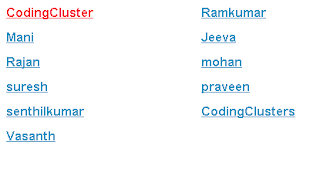
DynamicLinkButton.aspx.cs
If this post was help to you. Then Share this to your friends. Thanks!
In this article I am explaining how to add Dynamic table with Dynamic LinkButton. In the design page, we just add how many controls we need and where it should be placed. These controls are static and having the data what we gave. In some cases we have to dynamically get data from the database and create dynamic controls for the data.
Creating Dynamic LinkButton in Asp.Net is simple one . After creating the dynamic controls just add the controls in a PlaceHolder or Panel control.
In the following sample, I'm created a html table with students name at run time. Here i'm created dynamic link for all students at the time of binding. The dynamic click event "lnkStudentDetails_Click" redirect to corresponding student details page.
In the Page_Load event, Call the load data method outside the IsPostBack() method. Because our dynamic controls should recreate each and every time when a postback call.
DynamicLinkButton.aspx
"C#" AutoEventWireup="true" CodeFile="Default.aspx.cs" Inherits="_Default" %>
<!DOCTYPE html PUBLIC "-//W3C//DTD XHTML 1.0 Transitional//EN" "http://www.w3.org/TR/xhtml1/DTD/xhtml1-transitional.dtd">
<html xmlns="http://www.w3.org/1999/xhtml">
<head id="Head1" runat="server">
    <title>Coding Cluster - Dynamic Link Button</title>
</head>
<body>
<form runat="server" id="f1">
    <asp:Panel ID="pnlStudentDynamic" runat="server">

    </asp:Panel>
    </form>
</body>
</html>
Sample:

DynamicLinkButton.aspx.cs
using System;
using System.Configuration;
using System.Data;
using System.Linq;
using System.Web;
using System.Web.Security;
using System.Web.UI;
using System.Web.UI.HtmlControls;
using System.Web.UI.WebControls;
using System.Web.UI.WebControls.WebParts;
using System.Xml.Linq;
using System.Data.SqlClient;

public partial class _Default : System.Web.UI.Page
{
    // Create object for your html table
    HtmlTable tblStudents = new HtmlTable();

    protected void Page_Load(object sender, EventArgs e)
    {
        if (!IsPostBack)
        {
            //Do nothing
        }
       //Load students name
        LoadStudents();
    }

    public void LoadStudents()
    {
       // Connection string for your database
        SqlConnection SqlConn = new SqlConnection("Data Source=localhost;Initial Catalog=Student;User ID=sa;Password=sa");
        SqlDataAdapter SqlDap = new SqlDataAdapter("select * from StudentMaster", SqlConn);
        DataTable objDT = new DataTable();
        SqlDap.Fill(objDT);

        tblStudents.ID = "tblStudent";
        tblStudents.Width = "40%";
        tblStudents.CellPadding = 5;
        int intRowCount = objDT.Rows.Count;

        if ((intRowCount > 0))
        {
            int sCount = (intRowCount / 2) + 1;
            int intCurrentCount = 0;
            for (int i = 1; i <= sCount; i++)
            {
                HtmlTableRow tblRowDef = new HtmlTableRow(); tblRowDef.Align = "center"; if ((intRowCount > intCurrentCount))
                {
                    for (int l = 1; l <= 2; l++)
                    {
                        if ((intRowCount > intCurrentCount))
                        {
                            HtmlTableCell tblCellDef = new HtmlTableCell();
                            tblCellDef.ID = "0" + objDT.Rows[intCurrentCount]["Student_Name"].ToString();
                            tblCellDef.Width = "50px";
                            LinkButton lnkStudent = new LinkButton();
                            lnkStudent.ID = "lnkStudent" + objDT.Rows[intCurrentCount]["Student_Name"].ToString();//You can change with Student_ID
                            lnkStudent.Text = objDT.Rows[intCurrentCount]["Student_Name"].ToString();
                            lnkStudent.CommandName = objDT.Rows[intCurrentCount]["Student_ID"].ToString();
                            lnkStudent.Font.Bold = true;
                            lnkStudent.Font.Size = 13;
                            lnkStudent.Width = 10;
//Create dynamic click event for all link buttons
lnkStudent.Click += new EventHandler(lnkStudentDetails_Click);tblCellDef.Controls.Add(lnkStudent);tblRowDef.Controls.Add(tblCellDef); intCurrentCount += 1; } } } tblStudents.Controls.Add(tblRowDef); } } pnlStudentDynamic.Controls.Add(tblStudents); } protected void lnkStudentDetails_Click(object sender, EventArgs e) { LinkButton lnkStudent = (LinkButton)sender;
        //Redirect to student details page
        Response.Redirect("StudentDetails.aspx?ID=" + lnkStudent.CommandName);
    }

}


 Posts


