Coding Cluster - using asp.net, c#, mvc 4, iphone, php, ios, javascript, in asp.net mvc 3 & more
 
Showing posts with label Javascript. Show all posts

Run client side .exe file from server side using asp.net

Saturday

                                                                   In one of my project my clients requirements is scanning a document from local scanner and directly upload into the server through web application. But there is no direct method to access local machine from sever code in dot net, so we need some other solutions to access local .exe (to activate scanner) file from server.

Finally Google answering me "ActiveX0bject". Yes we can run .exe file from server by using ActiveX shell command. Here is the sample code to run client's side .exe file from server  by using JavaScript and ActiveX0bject.

Enable ActiveX controls in IE for run .exe files from local :
                                Before  we enable ActiveX in IE settings with the following simple steps, 
Step -1: Open IE -->Tools --> Internet Options

Step -2:  Go to security tab choose your zone (Internet (OR) Local)  then click custom Level button

Step-3:  Just set "The Initialize and script ActiveX controls not marked as safe" as "Prompt"


 And the following JavaScript code is for run .exe (In my case "ImageScanner.exe")file with parameter session id, display order  and user id.

JavaScript Code 

function runScaningApp(sessId, disorder, userId){

var shell=new ActiveX0bject("WScript.shell");

var res = shell.run('"ImageScanner.exe" "'+ sessId +'" "'+ disorder+'" "'+ userId+'", '1', true);

 if (res == "0"){
   alert ("Your success message");
 }
 else{
   alert ("Sorry! Some error occurred");
 }
}

Solution: How to remove special characters from textbox using JavaScript (onchange,onkeyup)

Monday

 Client side validation: Remove special characters from textbox before save:
                                                         Sometime you might come into a situation to remove the specials characters in the textbox while users give the input. Below JavaScript sample code will help you to remove those char from textbox. The following script delete all the special character  on textbox "onkeyup" event.


Source code:
<html xmlns="http://www.w3.org/1999/xhtml" >
<head runat="server">
    <title>Remove Special Characters from the Textbox - Coding cluster</title>
    <script language="javascript" type="text/javascript">
        function deleteSpecialChar(txtName) {
            if (txtName.value != '' && txtName.value.match(/^[\w ]+$/) == null) 
            {
                txtName.value = txtName.value.replace(/[\W]/g, '');
            }
        }
    </script>
</head>
<body>
    <form id="form1" >
    <div>
        <input id="txtName"  type="text" onkeyup="javascript:deleteSpecialChar(this)" />

    </div>
    </form>
</body>
</html>
Demo:Remove Special Characters from the Textbox - Coding cluster
Enter some text with special characters

That's all. If this post is useful for you , please share this knowledge to your friends. Thanks!

Various methods to call javascript function from asp.net code behind

Tuesday

Execute JavaScript function from ASP.NET code behind using c#:
                                              Calling a JavaScript function from codebehind is quiet simple. Here's how to do it. You can use ClientScript.RegisterStartupScript() to do what you want, like this:

 Declare a JavaScript function in your code as shown below.

Javscript:
<head runat="server">
    <title>Call JavaScript From CodeBehind</title>
    <script type="text/javascript">
        function fnSample() {
            alert('Codingcluster');
        }
    </script>
</head>
In order to call it from code behind, use the following code in your Page_Load

C# method 1:
protected void Page_Load(object sender, EventArgs e)
{
    if (!ClientScript.IsStartupScriptRegistered("alert"))
    {
        Page.ClientScript.RegisterStartupScript(this.GetType(),
            "alert", "fnSample();", true);
    }
}

C# method 2:
protected void Page_Load(object sender, EventArgs e)
{
   ScriptManager.RegisterStartupScript(this.Page, typeof(Page), "fnSample", "fnSample();", true);
}

C# method 3:

 protected void btnSubmit_Click(Object sender, EventArgs e)
    {
        var script = "alert('Hai codingcluster');";
        ClientScript.RegisterStartupScript(typeof(Page), "MyAlert", script, true);
    }
The format is (type, scriptKey, scriptText, wrapItInScriptTags).

                                     
The Page.ClientScript.RegisterStartupScript() allows you to emit client-side script blocks from code behind.

That's all. If this post is useful for you , please share this knowledge to your friends. Thanks!

ASP.NET: How to Show/ Hide Div Tags based on radio button selection

Wednesday

Show/hide div based on radio button selection in asp.net:
                                                                       This post will show you how to create a hidden Div and display it with the click of a link. The following code will Show / Hide a div tags  when changing the selection of a radio button.

Sample code for show/hide div tag from code-behind using asp.net:

@ Page Language="C#" AutoEventWireup="true" CodeFile="Default.aspx.cs" Inherits="_Default" %>

<!DOCTYPE html PUBLIC "-//W3C//DTD XHTML 1.0 Transitional//EN" "http://www.w3.org/TR/xhtml1/DTD/xhtml1-transitional.dtd">
<html xmlns="http://www.w3.org/1999/xhtml">
<head id="Head1" runat="server">
    <title>Hide div</title>

    <script runat="server">
        protected void rbtnHideDiv_SelectedIndexChanged(object sender, System.EventArgs e)
        {
            if (rbtnHideDiv.SelectedItem.Text == "Red")
            {
                divRed.Style.Add("display", "none");
                divGreen.Style.Add("display", "inline");
            }
            if (rbtnHideDiv.SelectedItem.Text == "Green")
            {
                divGreen.Style.Add("display", "none");
                divRed.Style.Add("display", "inline");
            }
        }
    </script>

</head>
<body>
    <form id="form1" runat="server">
    <div>
        <asp:RadioButtonList ID="rbtnHideDiv" runat="server" AutoPostBack="true" OnSelectedIndexChanged="rbtnHideDiv_SelectedIndexChanged">
            <asp:ListItem>Red</asp:ListItem>
            <asp:ListItem>Green</asp:ListItem>
        </asp:RadioButtonList>
    </div>
    <div style="background-color: Red" id="divRed" runat="server">
        <asp:Label ID="lblTextRed" SkinID="label_information" Text="My background is RED"
            ForeColor="White" runat="server"></asp:Label>
    </div>
    <div style="background-color: Green" id="divGreen" runat="server">
        <asp:Label ID="lblGreen" SkinID="label_information" Text="My background is GREEN"
            ForeColor="White" runat="server"></asp:Label>
    </div>
    </form>
</body>
</html>


Sample code for show/hide div tag using java script in asp.net:

<html>
<head runat="server">
    <title></title>
     <script type="text/javascript" language="javascript">

         function hideDiv() {
             document.getElementById('div1').style.display = 'none';
             document.getElementById('div2').style.display = 'none';

             if (document.getElementById('rbtnMain_0') != null) {
                 if (document.getElementById('rbtnMain_0').checked) {
                     document.getElementById('div1').style.display = 'block';
                 }
             }

             if (document.getElementById('rbtnMain_1') != null) {
                 if (document.getElementById('rbtnMain_1').checked) {

                     document.getElementById('div2').style.display = 'block';

                 }
             }
         }
    </script>
</head>
<body>
    <form id="form1" runat="server">
    <div>
      <asp:RadioButtonList ID="rbtnMain" runat="server" onchange="hideDiv()">
            <asp:ListItem Text="rb1" Value="1" Selected="True"></asp:ListItem>
            <asp:ListItem Text="rb2" Value="2"></asp:ListItem>
        </asp:RadioButtonList>
        <div id="divmain">
        <div id="div1">
           div1 <asp:Button ID="Button1" runat="server" Text="Button" />
        </div>
        <div id="div2" style="display:none">
           div2  <asp:TextBox ID="TextBox1" runat="server"></asp:TextBox>
        </div>
        </div>
        
    </div>
    </form>
</body>
</html>
If this post was help to you. Then Share this to your friends. Thanks!

Demo/Download:Javascript slider control for numeric inputs

Tuesday

Javascript Slider Control - Example:

         In one of my client's project I need a slider control for change the light's intensity by using slider control. The intensity range from 0 to 100. But don't allow the user to give intensity bellow 30. This means prevent the user to move the slider bellow30.

          So I got a slider control from web and modified with the above requirement. It's done by following way, I create two div elements  first div contains the value 0...30 and its height is 4px(slider height) with green static background which means the user can't move the slider up to 30(a small trick!).

        The second div contains the original slider control and its value from 30...100. If  you face any div height problem with IE you can find the solution for div height not work with IE from here.

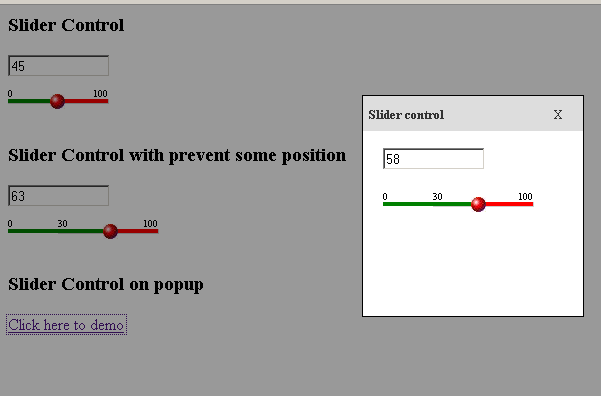
         In this following example i'm showing three types of slider control. The first one is normal slider control with number( 0 to 100). Second one is  slider control with number( 0 to 100) and minimum level validation. Finally Javascript slider show in popup.

Javascript slider control with number( 0 to 100):
                           This type of slider start with 0 and end with 100. And there is  a text box to shown your changed values. The text box value is automatically changed while you move slider handle. See the first slider of the following picture.

Javascript  slider control with number( 0 to 100) and minimum level validation:
                             This type of slider start with 30(you can change this ) and end with 100.  That means  you can't move slider to bellow 30(or your wish). simply said, you can disable your user to move slider under  a minimum level. Also  there is  a text box to shown your changed values . The text box value is automatically changed while you move slider handle. See the second  slider of the following picture.

 Javascript slider show in popup:
                                The above slider also shown in a popup control. See the third slider of the following image


Download Javscript slider control from here.

If this post was help to you. Then  Share this to your friends. Thanks!

Adding Line Breaks into Text Area using JavaScript

Monday

Textarea - output not showing linebreaks:
        Whitespace in HTML output, including many white-space characters in a row,is displayed in HTML pages as a single  ordinary space. And a line break also considered as whitespace.
If you want to display text that includes linebreaks in HTML so that the linebreaks show, you can do the following ways
  •  Put the text in between <pre> and </pre> tags.
  • (Use your server/client side language to convert the line breaks into <br /> tags.

For example,
Adding Line Breaks into Text Area using JavaScript:

var strAddress= document.forms[0].txt.value;
text = strAddress.replace(/\n\r?/g, '<br />');

Adding Line Breaks into Text Area using PHP:

$strAddress = str_replace("<br>", "\n", $strAddress);


Please share this post if it's useful to you. Thanks!.

Check Password Strength with JavaScript and Regular Expressions

Thursday

Javascript Password Strength Meter:
This post is  good example of a Password Strength checker that uses JavaScript and Regular Expressions. It check the following conditions to create secure password.
  • The password must contains greater than 6 character
  • The password must have both lower and uppercase characters
  • The password must have at least one number
  • The password must have at least one special character
   
PasswordStrength.html

<!DOCTYPE HTML PUBLIC "-//W3C//DTD HTML 4.01 Transitional//EN">
<html>
<head>
  
    <title>Dotnetcluster-Password strength checker</title>
<!-- http://dotnetcluster.blogspot.in -->
    <script language="javascript" type="text/javascript">
 
function pwdStrength(password)
{
        var desc = new Array();
        desc[0] = "Very Weak";
        desc[1] = "Weak";
        desc[2] = "Better";
        desc[3] = "Medium";
        desc[4] = "Strong";
        desc[5] = "Strongest";
        var score   = 0;
        //if password bigger than 6 give 1 point
        if (password.length > 6) score++;
        //if password has both lower and uppercase characters give 1 point      
        if ( ( password.match(/[a-z]/) ) && ( password.match(/[A-Z]/) ) ) score++;
        //if password has at least one number give 1 point
        if (password.match(/\d+/)) score++;
        //if password has at least one special caracther give 1 point
        if ( password.match(/.[!,@,#,$,%,^,&,*,?,_,~,-,(,)]/) ) score++;
        //if password bigger than 12 give another 1 point
        if (password.length > 12) score++;
         document.getElementById("pwdDescription").innerHTML = desc[score];
         document.getElementById("pwdStrength").className = "strength" + score;
}
  
    </script>
</head>
<body>
    <table>
        <tr>
            <td>
          
                    Password<input type="password" name="pass" id="pass" onkeyup="pwdStrength(this.value)" />
            </td>
            <td>
                <div id="pwdDescription" style="color: red"">
                    <b>Password</b>
                </div>
            </td>
        </tr>
       
    </table>
</body>
</html>
 Demo for check password strength:

Password
Password
That's all. If this post is useful for you , please share this to your friends. Thanks!

Auto move (Auto Tab)cursor onto next form field using Javascript

Auto Tab Form Fields using JavaScript:
                   This a simple sample code for auto tab form fields using javascript.  It works in conjunction with the "maxlength" attribute of HTML, triggered whenever the user's input reaches the maxlength's value.
Code:

<script type="text/javascript">
/*
Auto tabbing script http://codingcluster.blogspot.in/
*/
function autoTab(current,next){
if (current.getAttribute&&current.value.length==current.getAttribute("maxlength"))
next.focus()
}

</script>

<b>Enter your input:</b>
<form name="fromAutoTab">
<input type="text" name="first" size="4" onkeyup="autoTab(this, document.fromAutoTab.second)"
    maxlength="3" />
<input type="text" name="second" size="4" onkeyup="autoTab(this, document.fromAutoTab.third)"
    maxlength="3" />
<input type="text" name="third" size="5" maxlength="4" />
</form>
  Try this demo:
  Enter your input:

How to Find Vowels in a String in JavaScript

Wednesday

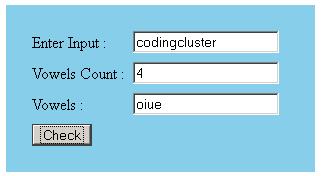
Find  total number of vowels in a string in JavaScript:
                                                     This article explain how to find Vowels in a String and how to find total number of vowels in a string in JavaScript. I have written simple script for checking vowels in a string in JavaScript. I have used regular expression.


<html>
<head>

    <script>
function findVowels() {

var str=document.getElementById('name').value;  

   var vowelC = 0;
var total_findVowels="";
     for (var i = 0; i < str.length; i++) {

     if (str.charAt(i).match(/[a-zA-Z]/) != null) {

        // findVowels

        if (str.charAt(i).match(/[aeiouAEIOU]/))
  {

 total_findVowels=total_findVowels+str.charAt(i);            
 vowelC++;

        }

     }
   }
    document.getElementById('findVowels').value=total_findVowels;
 document.getElementById('findVowels_count').value=vowelC;
   alert("Total Number of findVowels: " + vowelC);
 

}
    </script>

</head>
<body>
<div style="background-color: skyblue; padding:20px">
    <table border="0" cellpadding=3" cellspacing="3">
        <tr>
            <td>
                Enter Input :
            </td>
            <td>
                <input type='text' value='' id='name' name='name'>
            </td>
        </tr>
        <tr>
            <td>
                Vowels Count :
            </td>
            <td>
                <input type='text' readonly="true" value='' id='findVowels_count' name='findVowels_count'>
            </td>
        </tr>
        <tr>
            <td>
                Vowels :
            </td>
            <td>
                <input type='text' readonly="true" value='' id='findVowels' name='findVowels'>
            </td>
        </tr>
        <tr>
            <td colspan="2">
                <input type='button' value='Check' onclick="javascript:findVowels();">
            </td>
        </tr>
    </table>
    </div>
</body>
</html>
               

Convert Text to Uppercase Using JavaScript

Thursday

Converting all text in textbox into UPPERCASE / lowercase:
                                                                Converting a text string to uppercase is very easy using the JavaScript toUpperCase() method and in the same way the toLowerCase() method is used to converting a text string to lowercase. The following code and example shows how this works:
Example:


Code:

<html>
<head>
<title>Convert String</title>
<script type="text/javascript" language="javascript">
function changeCase(){
    var txt = document.getElementById("txtChangeText").value;
    var str = new String(txt);
    var changeTo = str.toUpperCase();
    document.getElementById("spnChangedCase").innerHTML = changeTo;
    // var changeTo = str.toLowerCase();//Remove the comment line to convert lowercase
    //document.getElementById("spnChangedCase").innerHTML = changeTo;
}
</script>
</head>
<body>
<div style="background-color: #A5C6FE; padding: 20px">
Type to change UPPERCASE:<input id="txtChangeText" type="text" size="20" onkeypress="changeCase();" />
<span style="color: Red; font-weight: bold" id="spnChangedCase"></span>
</div>
</body>
</html>
Try the demo:

Type to change UPPERCASE:

c# - Enabling And Disabling Buttons In GridView

Monday

                                                              In this article  a GridView that has a number of buttons that you need to enable or disable all at once and don't want to have to force a post back on your users in order to loop through them all. By using only a simple js function.

When a GridView renders on the page, it is simply an HTML table and you can traverse it just like you would any other HTML table using JavaScript.

The following code to do a basic version of this in order to enable or disable all buttons in a GridView. First the code gets an instance of the GridView using the ClientID of the GridView, then create a collection of all input controls in the GridView. Next it loops through each input control and checks the type (this is necessary because input controls include not only submit buttons but also things like textboxes). Finally we either enable or disable the submit button.

Code:
<script type="text/javascript" language="javascript">
function disableButtons() 
{
    var gridViewID = "<%=gvReporter.ClientID %>";
    var gridView = document.getElementById(gridViewID);
    var gridViewControls = gridView.getElementsByTagName("input");

    for (i = 0; i < gridViewControls.length; i++) 
    {
        // if this input type is button, disable
        if (gridViewControls[i].type == "submit") 
        {
            gridViewControls[i].disabled = true;
        }
    }
}

function enableButtons() {
    var gridViewID = "<%=gvReporter.ClientID %>";
    var gridView = document.getElementById(gridViewID);
    var gridViewControls = gridView.getElementsByTagName("input");

    for (i = 0; i < gridViewControls.length; i++) {
        // if this input type is button, disable
        if (gridViewControls[i].type == "submit") 
        {
            gridViewControls[i].disabled = false;
        }
    }
}
</script>

Disable Cut/Copy/Paste into HTML form using Javascript

Tuesday

How to disable  cut , copy,  paste on Client browser's using javascript 
                                                                     Javascript based techniques can be easily disabling javascript support methods on browsers. The following script also work with IE

Code:

<html>
<head>
</head>
<body oncopy="return false;" onpaste="return false;" oncut="return false;">
    <form id="form1" runat="server">
        <div>
           Try to copy this and paste in your editor
        </div>
    </form>
</body>
</html>


Javascript Email Validation

Thursday

Simple email validation in javascript:
                                             This is a script for validate  form box to ensure that the user entered a valid email address. If not, the form submition is canceled, and the user prompted to re-enter a valid email address.

 This script validate the following assumptions:
  • The mailID should contains a least one character procedding the "@"
  • The mailID should contains a "@" following the procedding character(s)
  • The mailID should contains at least one character following the "@", followed by a dot (.), followed by either a two character or three character string .

Javascript code for validate email address:
<html>
<head>
    <title>Email Validation</title>
    <script type="text/javascript">
var error;
function isValidEmail(){
var str=document.mailValidation.txtEmail.value
var filter=/^([\w-]+(?:\.[\w-]+)*)@((?:[\w-]+\.)*\w[\w-]{0,66})\.([a-z]{2,6}(?:\.[a-z]{2})?)$/i
if (filter.test(str)){
alert(str +" is  a valid email address");
error=false;
}
else{
alert("Please enter a valid email address!");
error=false;
}

return (error)
}
    </script>

</head>
<body>
    <form name="mailValidation">
    Enter Your Email Address:<br />
    <input type="text" size="15" name="txtEmail">
    <input type="submit" value="Submit" onclick="return isValidEmail();">
    </form>
</body>
</html>

Demo:
 
    Enter Your Email Address:  


Get remaining characters count in a textbox using javascript

Wednesday


Show how many characters remaining in a html text box using javascript:
                                                                                     The following  javascript will help you to show how many characters are remaining for a textbox or textarea, The label placed next to the text box shown the number of character remaining.

<script type="text/javascript">
function txtCounters(id,max_length,myelement)
{
counter 
= document.getElementById(id);
field = document.getElementById(myelement).value;
field_length field.length;
 if 
(field_length <max_length)  {
//Calculate remaining characters
 
remaining_characters max_length-field_length;
//Update the counter on the page
  
counter.innerHTML remaining_characters;  }
 } 
</script>

<label for="txtName">Enter Your Text : </label>
<input type="text" id="txtName" size="50" maxlength="50" onkeyup="javascript:txtCounters('txtCounter',50,'txtName')"> <div id="txtCounter"><b>50</b></div>characters remaining.
Demo:

50
chars remaining.

Dynamically change body background color

Thursday


Dynamically change body background color using  javascript:
                                                                                           This is the sample code for Dynamically change the body/div/text background color using javascript. By using this code you can change the text color while the background changed dynamically.

Code:
<html>
<head>
    
<title>Dynamically change background color</title>
    
<script language="javascript" type="text/javascript">
var count=0;
function 
changeColor()
{
    setTimeout(
"showColorChange()",500);
}
function showColorChange()
{
    
var bg =new Array("red","darkblue","sky","yellow","blue","pink","green");
    var 
txt =new Array("black","white","green","blue","pink","red","yellow");
    if
(count<=6)
    {        
document.getElementById("divChangeColor").style.backgroundColor=bg[count++];
        document
.getElementById("txtChangeColor").style.color=txt[count++];
        
setTimeout("showColorChange()",500);
    
}
    
else
    
{
        count
=0;
        
changeColor();
    
}
}
    
</script>

</head>
<body onload="changeColor()">
    
<div id="divChangeColor" style="width: 300px; height: 300px; background-color: Gray">
        
<span id="txtChangeColor"><b>Look at me & my background</b></span>
    
</div>
</body>
</html>

Demo:


Look at me & my background

Get Screen Resolution Using Javascript

Saturday

Find out and display a user's screen resolution with javascript.
In javascript, the screen.width and screen.height properties contain the size a visitor's monitor is set to.

This can be useful if you have a page designed for a screen resolution that is higher than some viewers may have available

The following javascript function  is used to get your system screen resolution.
<head>
 
<title>Get Screen Resolution</title>

<script type="text/javascript" language="javascript">
function scrResolution(){
        
var width=screen.width;
        var 
height screen.height;
        document.getElementById("txt_scrWidth").value=width;        document.getElementById("txt_scrHeight").value=height;
}
</script>
</head>
<body onload="scrResolution();">

  <table width="200" border="0">
     <tr>
       <td>  
 Width :
<input name="txt_scrWidth" type="text" id="txt_scrWidth" size="5" />
      </td>
     
</tr>
     
<tr>
       
<td>
           Height :
  
 <input name="txt_scrHeight" type="text" id="txt_scrHeight" size="5" />
       </
td>
     
</tr>
    
</table>
</body>
</html>
Your Screen resolution
     Width :px
     Height :px         


Cookies handling using javascript

Monday


This simple post explained the cookie handling including create,get and delete cookies by using javascript.In one of my ruby project I'm struggled with retained client side paging (Paging using javascript) on that time I'm using this client side cookies to over come that problem.I thing you may use this concept to client side paging,sorting,keep dropdown sclected index and other client side actions.


Code:

<script src="../cookies.js"></script>
 

Step 1: Check cookies is enabled

Before go to create cookie you have to check if the cookies are allowed.

<script type="text/javascript" language="javascript">

    
function isCookiesEnabled () {
        
if (testSessionCookie())
            
alert ("Session coookies are enabled")
        
else
            alert 
("Session coookies are not enabled");
    
}

</script>


  Click to see if session cookies are allowed:


Step 2: Create cookie:

        The next step you can give a name and value for your cookie.
 
<script type="text/javascript" language="javascript">

    
function setCookie(){

        
if (testSessionCookie()) {

               
var myName = document.getElementById('addCookiName').value;

            var 
myValue = document.getElementById('addCookiValue').value;

            
createCookie (myName, myValue);
            alert 
("Session cookie created");
        
}
        
else
        
{
            
alert ("Sorry - session cookies are currently disabled.");
        
}     

}
</script>

Demo: 

Create cookie:

Cookie name:

Cookie value:


Step: 3: Get value from cookies by using its name


<script type="text/javascript" language="javascript">

    
function getCookie () {
        
var myCookieName = document.getElementById('getCookiName').value;
        if 
(getCookieValue (myCookieName))
            
alert ('The value of the Cookie is "' + getCookieValue (myCookieName) + '"')
        
else
            alert 
("Cookie not found");
    
}

</script
 

Demo:

Get value from cookie by using it's name
Cookie name:

Step 4:

And finally you can delete value from cookie by using the following nethod


<script type="text/javascript" language="javascript">

    
function deleteCookies () {
        
var myCookieName = document.getElementById('deleteCookiName').value;
        if
(myCookieName !""){
            
if (!getCookieValue (myCookieName))
                
alert ('Cookie does not exist')
           
else  {
                deleteCookie(myCookieName)
;
                alert 
("Cookie deleted successfully");

            
}
        }        
else

        
{

            
alert ('Cookie does not exist')
        }

    }

</script>

Demo: 

Delete value from cookie by using it's name
Cookie name:


You can download full source code from here...


RECENT POSTS

Boost

 
Blogger Widgets